
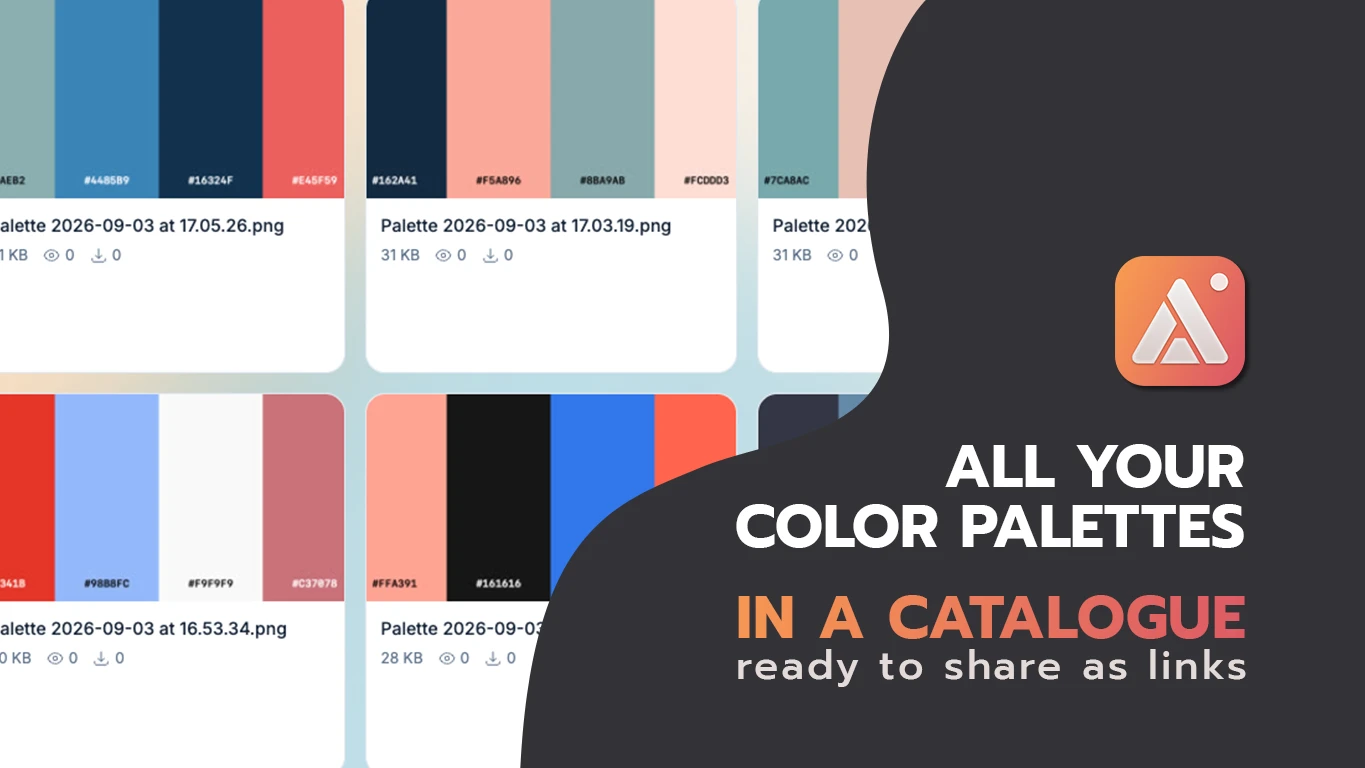
Color inspiration shows up everywhere — a competitor's app, a photo, someone else's design — but it never arrives with hex codes attached. The usual fix is a separate palette-generator site: save the image, upload it, wait for it to process, copy the values out one at a time. Three tools for one idea. AldooSnap skips the upload step entirely, because the image never has to leave the screenshot tool in the first place.
Inspiration Doesn't Come with Hex Codes
Seeing a color you want to use is the easy part. Getting from "that blue" to "#2F6FED" usually means a whole separate errand — and if the inspiration was something small, like a detail in a screenshot rather than a full image file, it's often not worth the trip.
Extract a Palette from Whatever's Already on Screen
AldooSnap's Extract color palette button works on whatever you've captured or selected — no file to save first, no site to upload to.
- Click the AldooSnap icon in the menu bar and choose Image → Area, then drag over the inspiration — an app, a photo, a design, whatever it is.
- Click Extract color palette in the annotation bar. It reads colors from that selection specifically, not the whole screen.
- A separate Color Palette window opens with six swatches pulled from the capture.
- Click any swatch to copy its hex code, or use Copy all color codes to grab the full set at once.
The Palette Becomes Its Own Shareable Thing
The palette window isn't just a reference you read off your screen — Save palette image exports it as a standalone PNG card with all six hex codes labeled, and Copy share link uploads that card directly and copies a link. The palette itself becomes something you can drop into a shared doc or send to a teammate, separate from whatever screenshot it was pulled from.
Every Palette You Save Joins the Same Catalogue
Clicking Copy share link on a palette card uploads it the same way any other capture gets uploaded — which means it lands in your account's Files gallery right alongside your screenshots and recordings. Name each one after its source — a competitor, a project, a mood board — and the gallery quietly turns into a searchable catalogue of every palette you've ever pulled, not just the one you extracted five minutes ago.
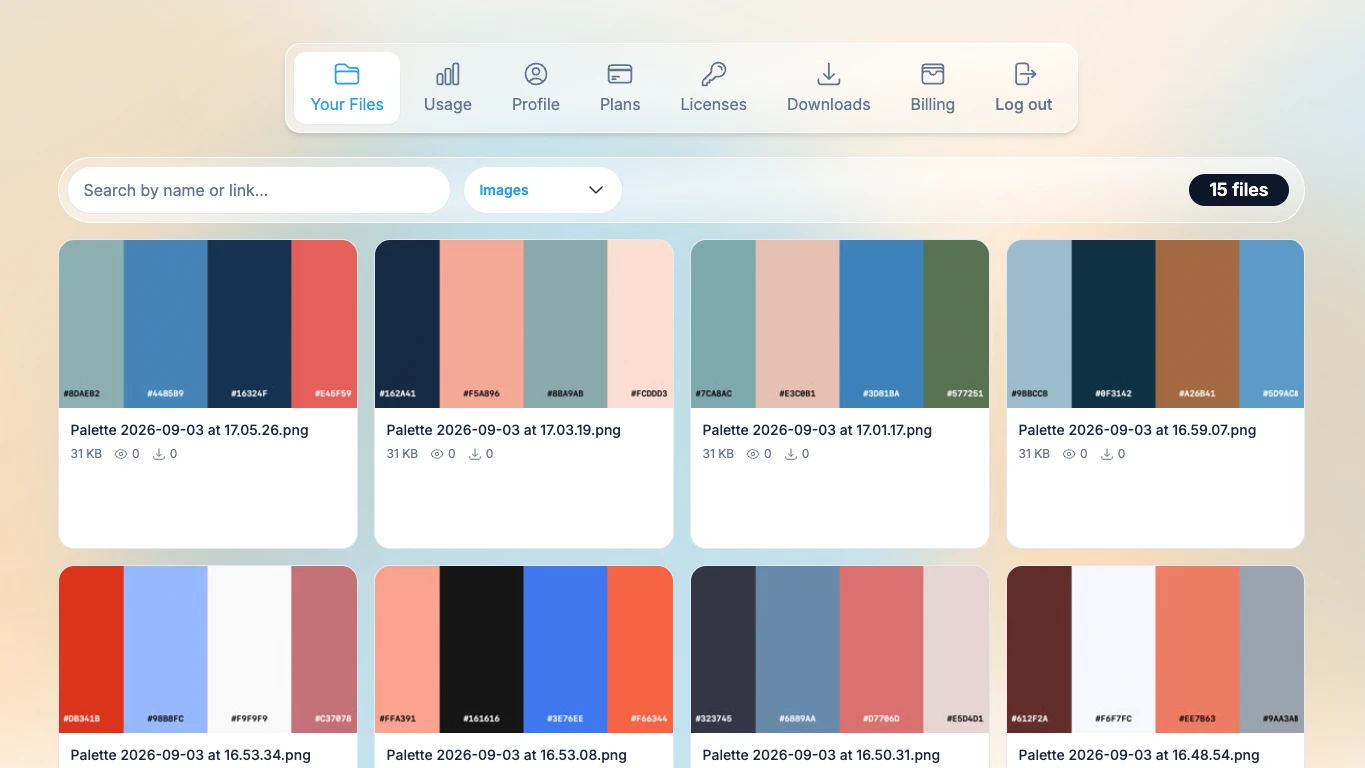
The next time a project needs "something like that blue from the app we looked at last month," there's no need to go find the app again and re-extract it — search the gallery, click the thumbnail's Copy link button, and the palette card is ready to share exactly as it was the first time.
Six Colors, Picked for Contrast — Not Just Frequency
The extraction favors distinct, vivid tones over sheer pixel count, so a mostly-white interface with one bold accent color doesn't come back as six shades of near-white — the accent gets a place in the palette instead of getting buried by the background.
Pin Down One Exact Color with the Eyedropper
The palette extractor summarizes a region; the separate eyedropper tool does the opposite — click one exact pixel and copy exactly that hex value. Use the palette to explore a source broadly, and the eyedropper once you already know which single color you need.
None of this replaces a real design system — six swatches from a screenshot are a starting point, not a finished palette. But a starting point that takes one click instead of a trip to another tool is a lot more likely to actually get used.