
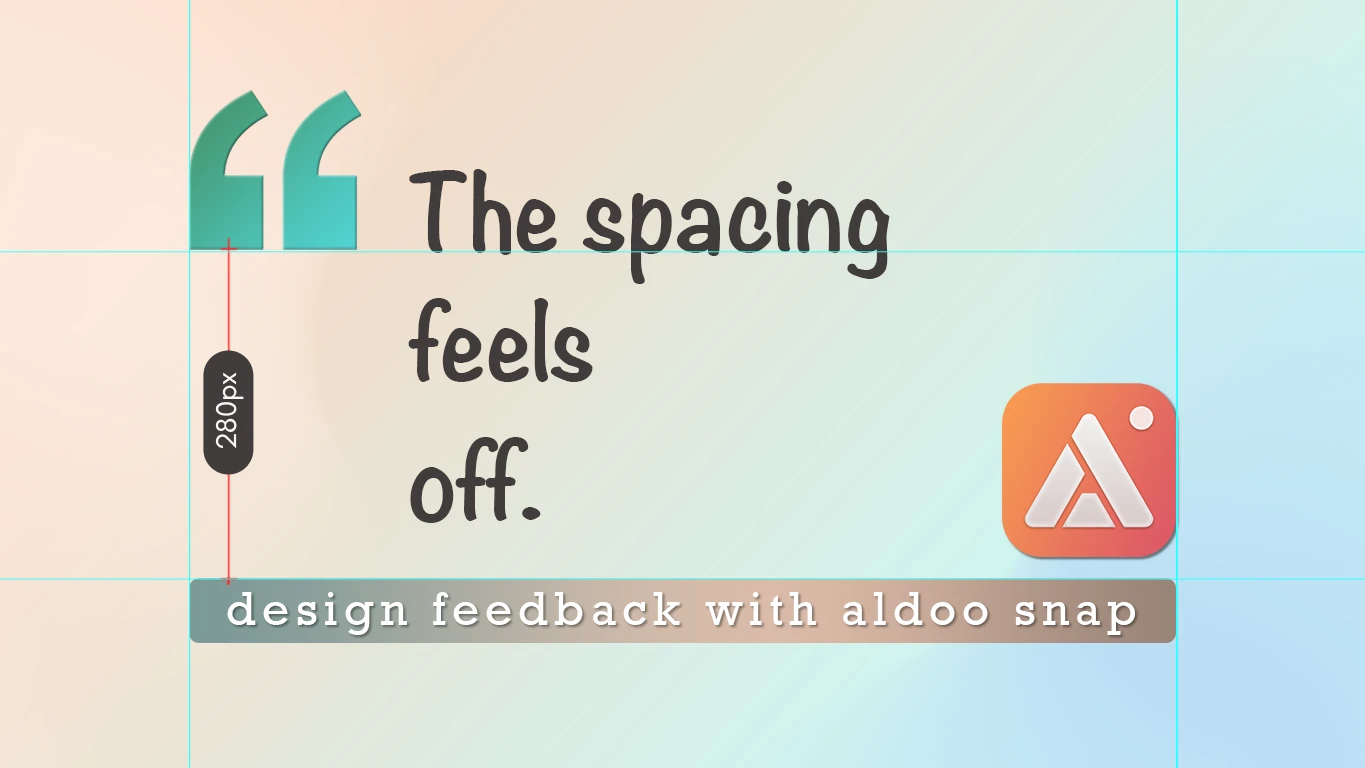
"The spacing feels off" is not feedback a designer can act on. Neither is "can we tighten this up a bit." Vague design notes turn into a round trip: someone has to guess what "off" means, make a change, and wait to hear whether it's closer or further from what the reviewer actually meant. With AldooSnap, the feedback can point at the exact pixel instead of describing it.
The "Something Feels Off" Problem
Design feedback is hard to write precisely in words. A margin that's 4px too wide, an icon that's 2px off from its label, a color that's close but not quite the brand blue — none of that translates well to a sentence in a comment thread. The reviewer knows something is wrong the moment they see it; writing that feeling down loses the precision that made it obvious in the first place.
Show the Exact Pixel, Not a Guess
A screenshot with the actual measurement, guide line, or hex value drawn onto it removes the guesswork entirely. AldooSnap's capture tools include a measure tool, rulers and guides, and a color picker — available on any image capture, ready the moment you take the screenshot.
Measure the Gap Instead of Describing It
- Click the AldooSnap icon in the menu bar and choose Image → Area or Window to capture the part of the design in question.
- Select the Measure tool from the annotation bar.
- Drag between the two points you're comparing — a margin, a padding gap, an icon's distance from its label. The exact pixel measurement draws right onto the image.
- Finish with Copy share link so the measurement travels with the image, not just as something you saw on your own screen.
Line Things Up with Rulers and Guides
Turn on Rulers and Guides and click anywhere along the ruler to drop a horizontal or vertical guide line — hold Option and drag to duplicate one. Guides are mainly there to help align your own annotations, but leaving one in place on purpose is also a fast way to flag a misaligned element: a guide running through an icon that doesn't sit flush with its label says more than a sentence would, and it stays baked into the image if you don't remove it before sharing.
Grab the Exact Hex Instead of Eyeballing It
When a color looks slightly wrong, the eyedropper pulls the exact hex value straight from the capture — useful for confirming whether something really is off-brand or just looks that way under different lighting or a different monitor. The Extract color palette button goes a step further, pulling out the dominant colors in the capture at once, handy for checking a whole section against a palette rather than one element at a time.
Add the Words That Still Need Saying
Measurements and guides handle the precise stuff; arrows, highlights, and numbered steps handle the rest. Circle the element, number a sequence of changes, or drop a text note next to the measurement — so the capture reads as a complete piece of feedback instead of a screenshot that still needs an explanation typed out next to it.
None of this replaces a design review conversation — it just means the conversation starts from an exact pixel instead of a feeling. Send the link, and the first response can be "fixed" instead of "what did you mean by off?"