
Capture Anything on Your Mac with AldooSnap Images
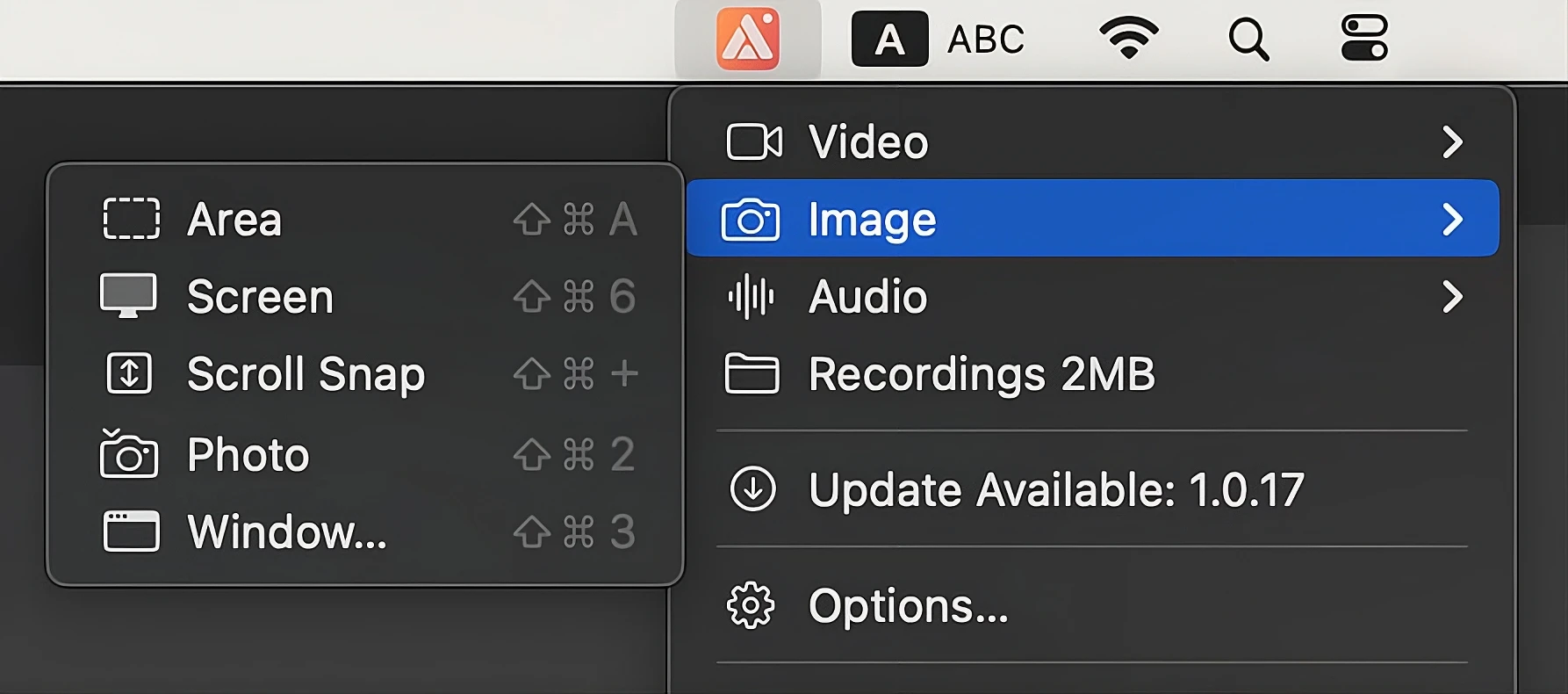
AldooSnap captures still images five ways: a custom area, the whole screen, a scrolling page, your camera, or a single app window. Every mode lives under the same menu bar icon, in the Image submenu, and every capture ends up under the same Recordings folder when you're done.
Capture an Area
Use this when you only need a piece of the screen, and want to mark it up before saving.
- Click the AldooSnap icon in the menu bar.
- Choose Image → Area.
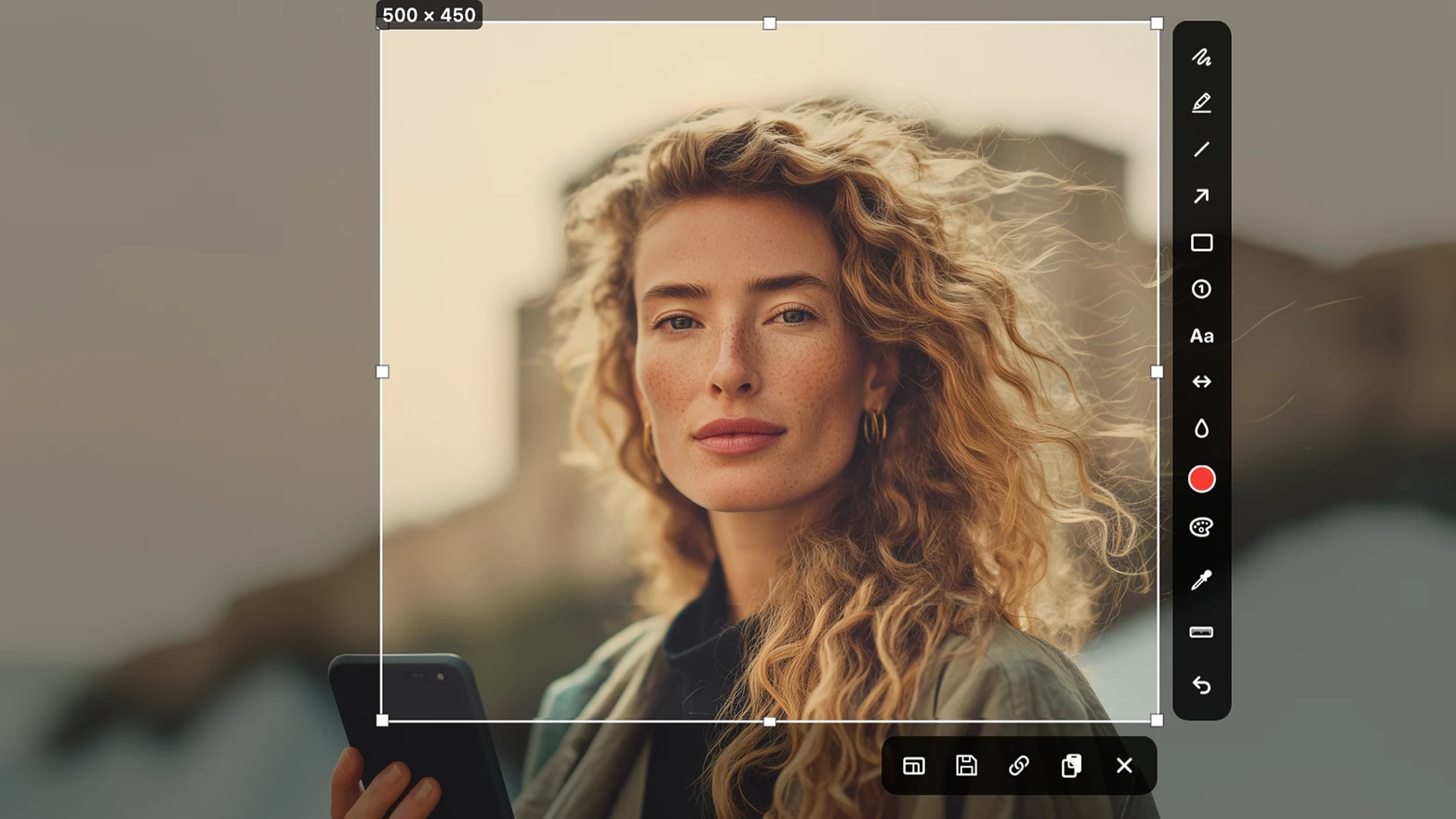
- The screen freezes. Drag to draw the rectangle you want to capture.
- Adjust the selection handles if you need to resize or reposition the rectangle, or open the Aspect Ratio & Size tool to lock it to a preset ratio or exact dimensions.
- Use the annotation bar to mark up the selection before saving: Pen, Highlighter, Line, Arrow, Rectangle, Numbered step, and Text tools, plus a color swatch, a Extract color palette button, and an eyedropper to pick and copy a color's hex value.
- Finish the capture with Save to file, Copy share link, or Copy to clipboard — or press Cancel to discard it.
Aspect Ratio & Size Tool
This one lives only in the Area selection step — Screen, Window, and Scroll Snap captures only get a freeform crop tool afterward, not this preset/exact-dimension tool. Click the Aspect Ratio & Size icon in the selection bar to open a small panel with:
- A ratio menu — Free, 16:9, 4:3, 1:1, 9:16, or 21:9.
- Width and height fields you can type exact pixel dimensions into directly.
Picking a preset instantly resizes the selection rectangle to that ratio. With a ratio selected, typing a width automatically scales the height to match, and vice versa — switch back to Free to set width and height independently.
Capture the Screen
Takes an instant, full-resolution shot of the active display.
- Click the AldooSnap icon in the menu bar.
- Choose Image → Screen.
- The first time, grant macOS's screen recording permission if prompted.
- AldooSnap captures the whole display instantly and opens it in the preview window.
- Mark it up if needed, using the same annotation tools as the area capture, plus Undo last annotation and Zoom in / Zoom out controls.
- Finish with Copy share link, Copy to clipboard, or Save — or Close to dismiss without saving.
Capture a Scrolling Page
Stitches a scrolled page or long document into one tall image.
- Click the AldooSnap icon in the menu bar.
- Choose Image → Scroll Snap.
- The screen freezes. Drag to draw a rectangle over the scrollable content.
- Click Start scroll capture.
- A "Scroll to capture" outline appears over the rectangle. Scroll through the content underneath it at a normal pace — AldooSnap stitches each frame into a single tall image as you go.
- Click Finish Scroll Snap when you reach the end.
- The stitched image opens in the same preview window as a screen capture, with the same annotate, share, clipboard, and save options.
Capture from the Camera
A photo booth for quick webcam snapshots, with a countdown and a film-roll of every shot you take.
- Click the AldooSnap icon in the menu bar.
- Choose Image → Photo.
- A dialog opens with a live camera preview.
- Pick a delay from the Countdown menu — Instant, 3s, 5s, or 10s.
- Click the shutter button to take a photo. Each shot lands in the film-roll lane at the bottom of the dialog.
- On any thumbnail in the roll, use Copy share link, Annotate, or Delete.
- Close the dialog when you're done.
Capture a Window
Captures a single app window, even if other windows overlap it.
- Click the AldooSnap icon in the menu bar.
- Choose Image → Window….
- Pick the window you want from the picker showing all open app windows.
- AldooSnap captures it instantly and opens it in the preview window.
- Mark it up and finish the same way as a screen capture — Copy share link, Copy to clipboard, Save, or Close.
Finding Your Captures
Every image mode saves under the same Recordings root used for video — images and videos each keep their own subfolder inside it. Click the AldooSnap icon in the menu bar and choose Recordings to open the folder directly in Finder.