
Record Audio on Your Mac with AldooSnap
AldooSnap includes a standalone audio recorder with a level meter, a gain fader, and a playlist of every take you record. It lives under the menu bar icon, in the Audio submenu, and every take ends up in the same Recordings folder.
Record a Take
Use this for voiceovers, quick voice notes, or any audio-only capture.
- Click the AldooSnap icon in the menu bar.
- Choose Audio → Recorder.
- Grant microphone permission if prompted — needed the first time only.
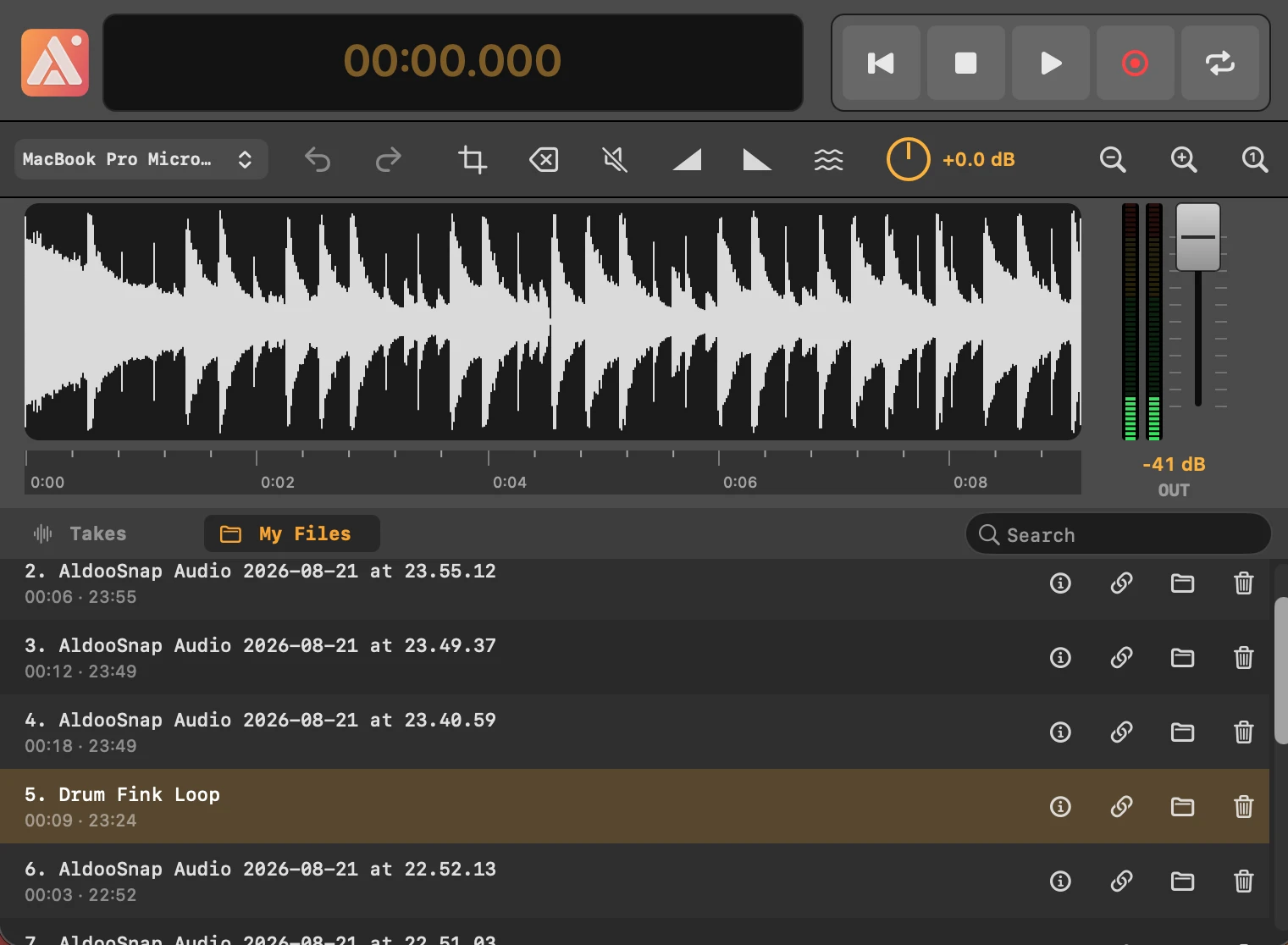
- The Audio Recorder deck opens, showing an LCD timer, L / R level meters, and a GAIN fader.
- Adjust the GAIN fader if you need to boost or lower the input level before recording — it's baked into the file.
- Click the record button to start a take. The status reads REC while it's running.
- Click the record button again to stop. The take is saved and appears at the top of the — PLAYLIST — below the deck.
Managing Your Takes
Every take you record stays in the playlist until you delete it, so you can record several and pick the best one.
- Click Play this take on any row to listen back — the same button turns into Pause playback while it's playing.
- Drag the POS slider to seek within the take that's currently playing.
- Use Copy share link on a row to get a shareable link for that take.
- Use Show in Finder to reveal the take's file directly.
- Use Delete to remove a take you don't want to keep.
Choosing a Microphone
AldooSnap records from your default microphone unless you set a different one.
- Click the AldooSnap icon in the menu bar.
- Choose Options….
- Pick the input device you want from the Microphone menu.
- Every new take, in any recording mode, uses that device from then on.
Finding Your Recordings
Every take also saves to the same place as your video and image captures. Click the AldooSnap icon in the menu bar
and choose Recordings to open the folder directly in Finder.
(You can change the directory for your
Recordings folder anytime from the
Options menu.)