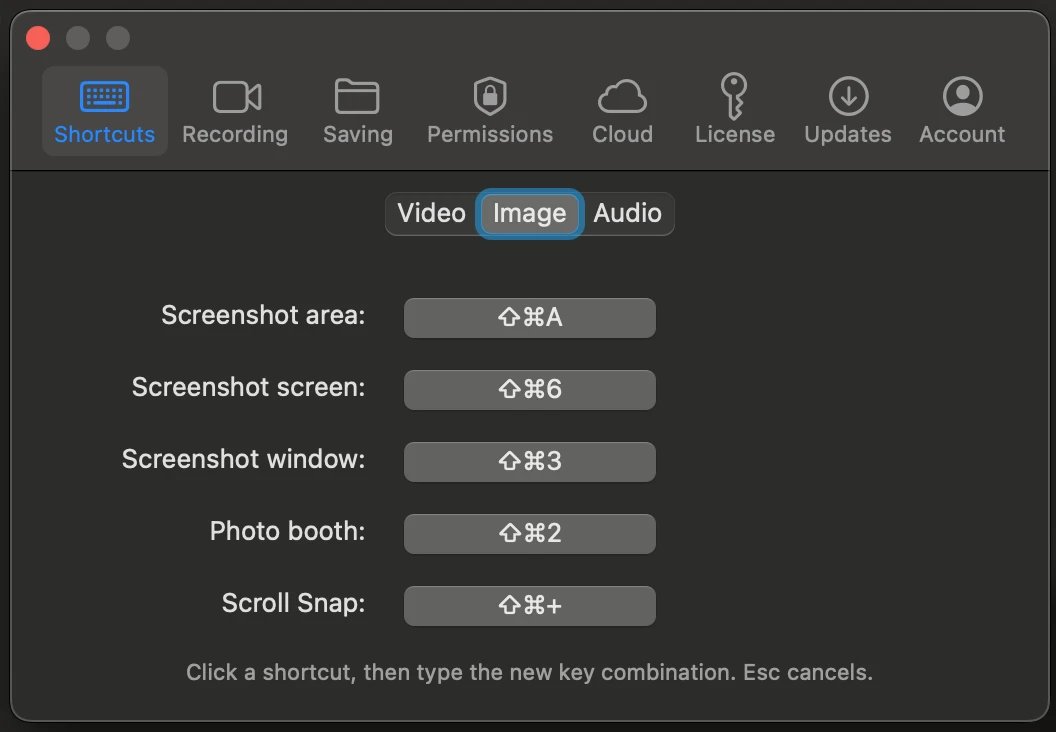
AldooSnap's Options window is where every capture default, keyboard shortcut, device, and account setting lives. Click the AldooSnap icon in the menu bar and choose Options to open it — it's organized into eight tabs across the top: Shortcuts, Recording, Saving, Permissions, Cloud, License, Updates, and Account.
Keyboard Shortcuts
Every capture action has a global keyboard shortcut, and every one of them is remappable.
- Open the Shortcuts tab and switch between the Video, Image, and Audio sub-tabs.
- Under Video, remap Record area, Record screen, Record window, Camera, and Repeat last capture.
- Under Image, remap Screenshot area, Screenshot screen, Screenshot window, Photo booth, and Scroll Snap.
- Under Audio, remap Audio recorder.
- Click any shortcut button, then type the new key combination — press Esc to cancel without changing it.
Camera and Microphone
Set which devices AldooSnap uses across every recording mode.
- Open the Recording tab.
- Choose a camera from the Camera menu — a live preview shows what it sees.
- Check Invert camera video (mirror) if your webcam bubble looks reversed.
- Choose an input from the Microphone menu.
- Drag the Input gain slider to boost or lower your mic level — the Input level meter shows the result live, gain included.
Where Captures Are Saved
Every recording, screenshot, and audio take shares one save location.
- Open the Saving tab.
- Click Change… to pick a different folder.
- Click Open Folder to reveal the current folder in Finder.
App Permissions
One place to see and manage everything macOS gates behind a permission prompt.
- Open the Permissions tab to see four toggles: Screen Recording (capturing the screen, areas, and windows), Camera (the camera bubble, Camera capture, and Photo booth), Microphone (sound in recordings and the Audio recorder), and Accessibility (picking exact windows for window capture).
- Flip a toggle on to grant it — the first time, this triggers macOS's native permission prompt.
- If a permission was already denied, flipping its toggle opens the exact System Settings pane instead, since macOS doesn't let apps re-grant a revoked permission on their own.
Cloud Storage
Track how much of your account's storage your shared links are using.
- Open the Cloud tab.
- If you're signed out, click Sign In to see your files and usage.
- Once signed in, view your Files, Storage, Views, and Downloads totals.
- Click Browse to open your full file list on the AldooSnap website.
Your License
Check your plan and license details without leaving the app.
- Open the License tab.
- If you're signed out, click Sign In to see your license and plan.
- Once signed in, review your License code, Status, Seats, Validity, and Product name.
- Click Refresh License to re-check your license state — a green "License refreshed" confirmation appears when it's done.
- Click Manage License to open your license details on the AldooSnap website.
Checking for Updates
Updates require a signed-in account with a valid license.
- Open the Updates tab to see your Current version and Latest version.
- Click Check for Updates to refresh that comparison.
- When a newer version is available and your account is eligible, an Install button appears — click it to download and install.
- A red dot on the Updates tab's icon means a new version is waiting, even if you haven't opened the tab yet.
Your Account
Sign in to unlock share links, cloud storage, licenses, and updates.
- Open the Account tab.
- Click Sign In if you're signed out, or Sign Out if you're signed in — signing out asks for confirmation, since it clears the account data stored on your Mac.
- Once signed in, click Manage Account to open your account settings on the AldooSnap website.