
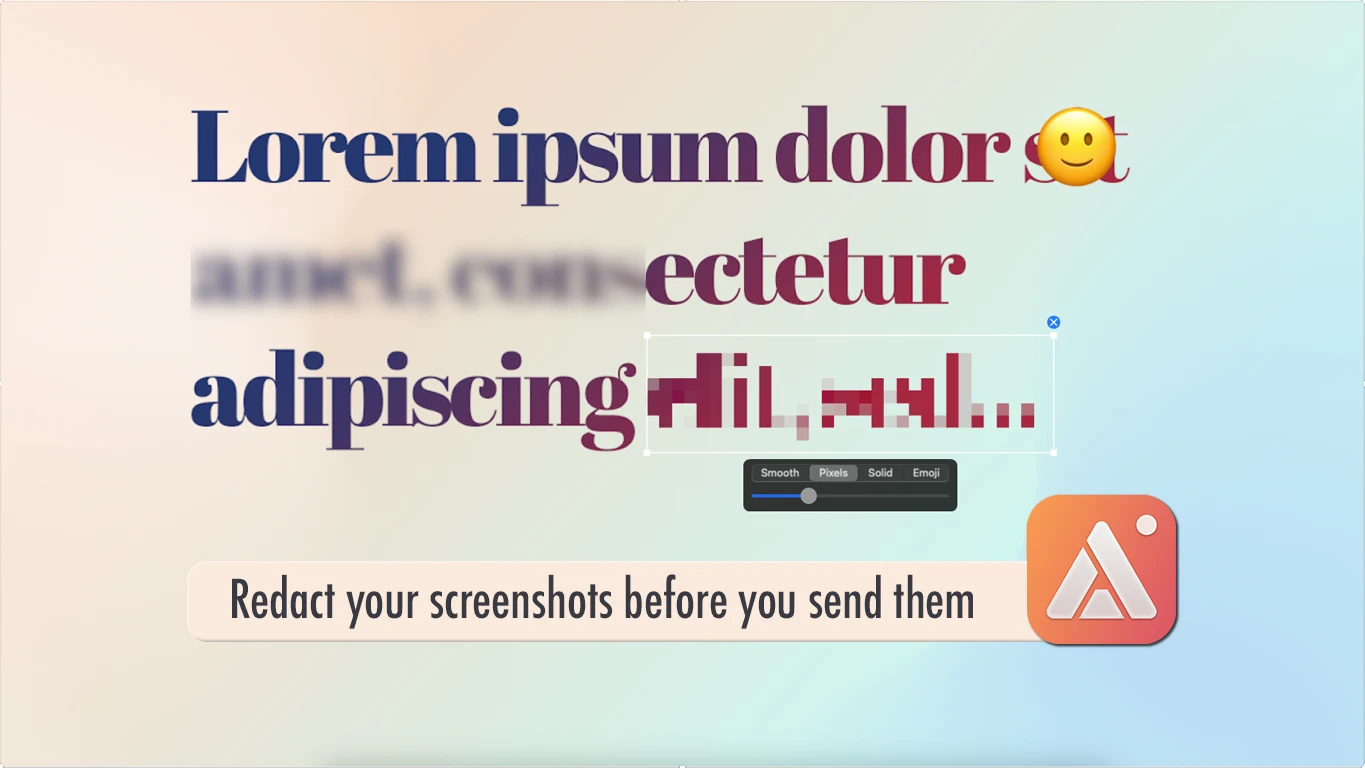
A support screenshot rarely stays inside the support tool. It gets forwarded to engineering, pasted into a public GitHub issue, dropped into a shared Slack channel — and it's easy to forget that the customer's email, account number, or chat history is sitting right there in the image until someone else points it out. AldooSnap puts the fix in the same window as the capture, so it's not a step anyone has to remember separately.
One Screenshot, One Compliance Risk
Manually blurring sensitive information means opening a separate image editor, finding the crop or blur tool, and exporting again — three extra steps between "I need to share this" and actually sharing it. Under a deadline, that extra editor is the step that gets skipped, and skipped often enough that it eventually becomes an incident instead of a near-miss.
Redaction Lives Where the Screenshot Is Taken
AldooSnap's redaction tool sits in the same annotation bar as every other markup tool, on every image capture — Area, Screen, Window, or Scroll Snap. There's no second app to open and no export step that undoes the point of redacting in the first place.
- Capture the screen as usual — Image → Area, Screen, or Window.
- Select the Redact tool from the annotation bar.
- Drag over the region that shouldn't be visible — an email address, an account number, a chat transcript.
- Pick a mode from the dropdown and, for Smooth or Pixels, adjust the intensity slider until nothing readable is left underneath.
- Finish with Copy share link, Save to file, or Copy to clipboard — the redaction is already part of the image, not a layer someone could peel back.
Four Ways to Hide Something
- Smooth — a soft gradient blur, adjustable intensity.
- Pixels — a classic pixelated mosaic, adjustable intensity.
- Solid — a flat, opaque block, for when partial legibility still isn't acceptable.
- Emoji — covers the area with an emoji instead, useful when the point is to acknowledge something is hidden rather than pretend it isn't there.
Why Not Just Crop It Out
Cropping removes context along with the sensitive part — sometimes the surrounding UI is exactly what the screenshot was supposed to show. Redacting in place keeps the rest of the screen intact and only hides the one field that actually needed to disappear.
Note that this applies to still images — screen recordings don't currently have a redaction step, so a capture with sensitive data that needs to move should go out as a screenshot rather than a video.
Built Into the Flow, Not a Separate Step
The reason this actually gets used isn't that the blur tool is powerful — it's that it's already open when you need it. A redaction step that requires switching apps gets skipped under pressure. One that's sitting in the same toolbar as the capture you're about to share doesn't.