
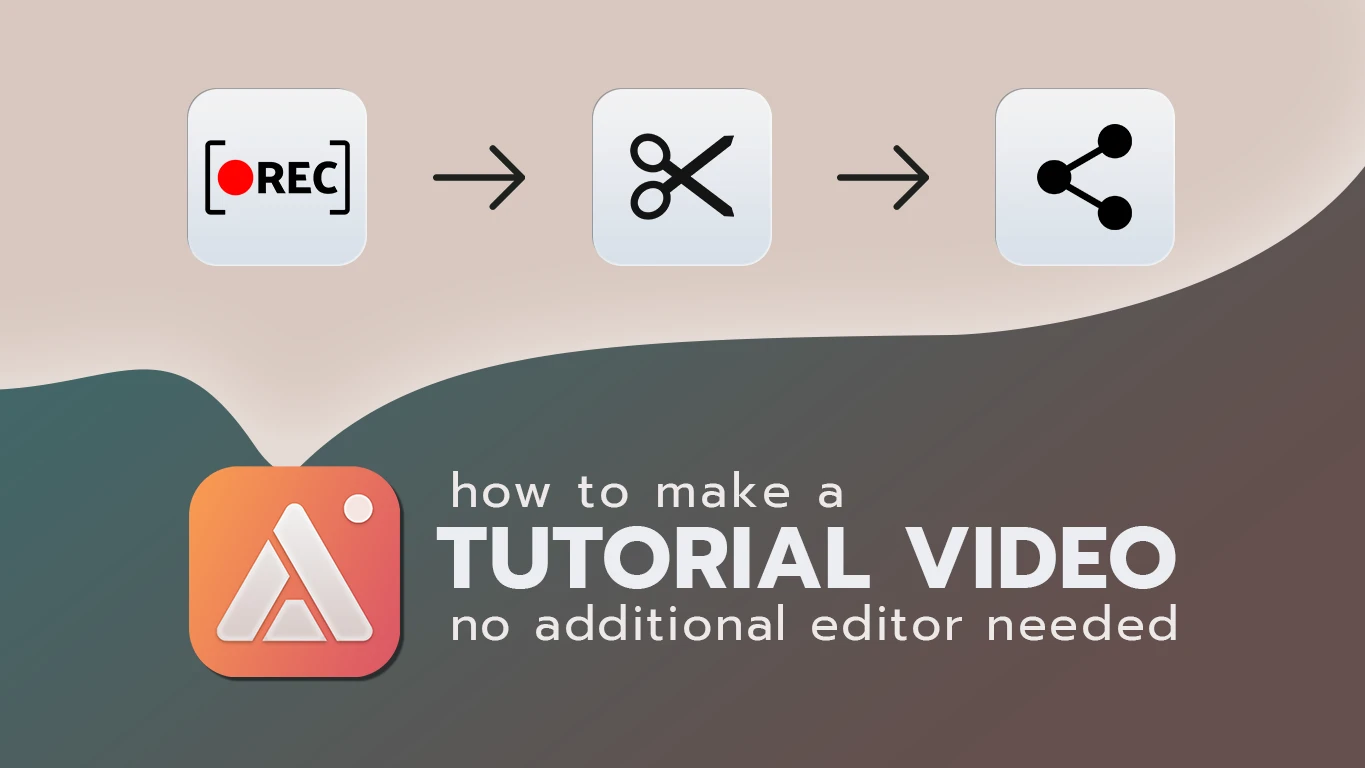
Most "I'll write up a how-to doc" plans die at the second step. The first step — knowing the process well enough to explain it — is easy. The second step is wrestling with a screen recorder, a separate webcam app, and a video editor just to trim out the part where you clicked the wrong menu. Most people give up and answer the same question in chat again next week instead. AldooSnap skips the wrestling part.
Why the How-To Doc Never Gets Made
Recording a walkthrough usually means picking a screen recorder, a separate app for the webcam overlay if you want your face in frame, and then an editor afterward to cut the dead air and export something small enough to share. Each extra tool is a reason to put it off. By the time it's set up, the motivation to explain the thing has usually passed.
Record, Trim, Share — One App
AldooSnap handles the recording, the webcam overlay, and the trim in the same window, and ends with a link instead of a file you still have to upload somewhere.
- Click the AldooSnap icon in the menu bar and choose Video → Screen or Window, depending on how much you need to show.
- Before you start, toggle Camera in the options bar if you want a webcam bubble on screen while you talk through it.
- Click Start Recording and walk through the process at a normal pace — no need to plan it out perfectly.
- Click Stop when you're done.
Keep Your Face in the Frame
The webcam bubble is a small, movable circle layered on top of the recording — drag it out of the way of whatever you're demonstrating, and it stays there for the rest of the take. A face next to the cursor makes a walkthrough easier to follow than narration over a silent screen, and it's built in rather than a second app running alongside the recorder.
Trim Without Reopening an Editor
Every take has a few seconds at the start where you're still finding your place, and AldooSnap opens a Trim tool automatically the moment you stop recording — drag the in and out points on the scrubber right there, no separate editor, no re-export step. Whatever you share, save, or convert to GIF next uses the trimmed range.
Share It as a GIF for a Quick Preview
Not every walkthrough needs a full video player. Click GIF instead of Copy Link and AldooSnap shares a short looping preview (capped at 30 seconds, 15fps, 640px wide) — useful for a chat message where you want the motion to speak for itself without anyone clicking through to a separate page.
Long Settings Pages Get the Scroll Snap Treatment
Not every step needs to be a recording. If the doc is really about a long settings page or a form that scrolls past the fold, Image → Scroll Snap stitches the whole thing into one tall screenshot, so a static doc can show the full page at once instead of three separate cropped shots stitched together by hand.
None of this turns a five-minute explanation into a produced video — it's still a rough, unedited take. But "rough and actually made" beats "polished and never recorded", and that's usually the choice a how-to doc comes down to.